REMOTE & MULTI-SCREEN MONITORING
Put SPECTER on a phone, a tablet, or a second monitor and watch every reading from across the room
SPECTER can serve several live views over your local network at once. A phone in your pocket, a laptop on the far wall, and a big TV behind the crew can all show a different piece of the same session in real time. Every view runs in a plain web browser on any device on the same Wi-Fi or LAN. No app install on the second device. And when you need to leave the site, a secure internet mode puts the same live feed and alerts on your phone from anywhere.
THE MOBILE REMOTE
The remote gives you the live feed, recent detection thumbnails, and sensor telemetry on a phone or tablet.
- Open Settings in SPECTER and go to the Displays & Remote tab.
- Turn on Remote Access. SPECTER shows a QR code and a LAN address such as
http://192.168.1.50:47842. - On the phone, scan the QR code or type that address into any browser. Both devices must be on the same network.
THE EVIDENCE WALL
The Evidence Wall is a full-screen dashboard built for a second monitor or a TV. It cycles through the live feed and the most recent detections, each labeled with its type, sigma class, synchronized timecode, and confidence score.
Open it from the remote address by browsing to the Evidence Wall link, then press your browser's full-screen key. It keeps updating on its own as new detections land.
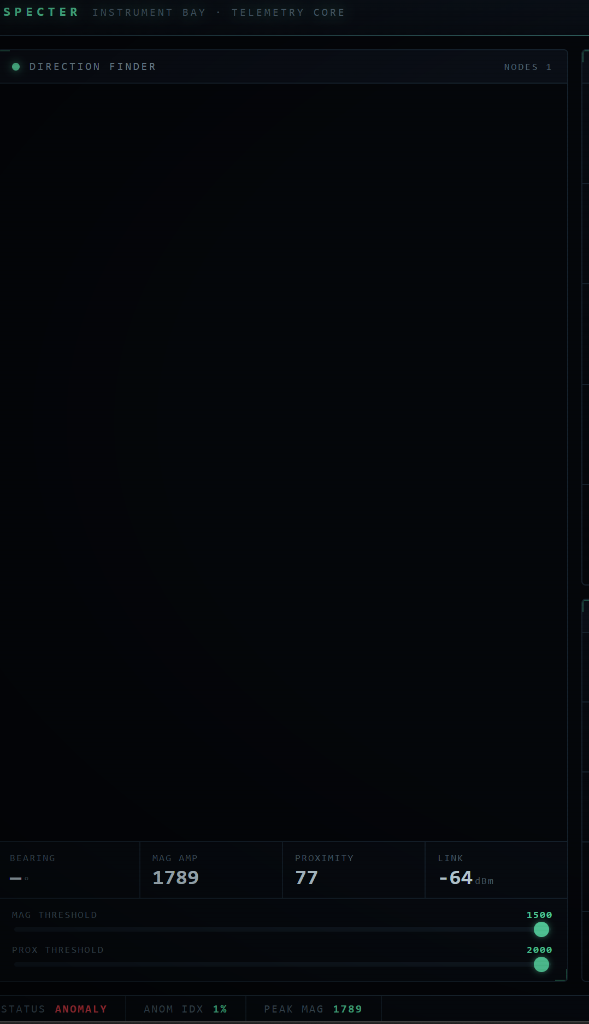
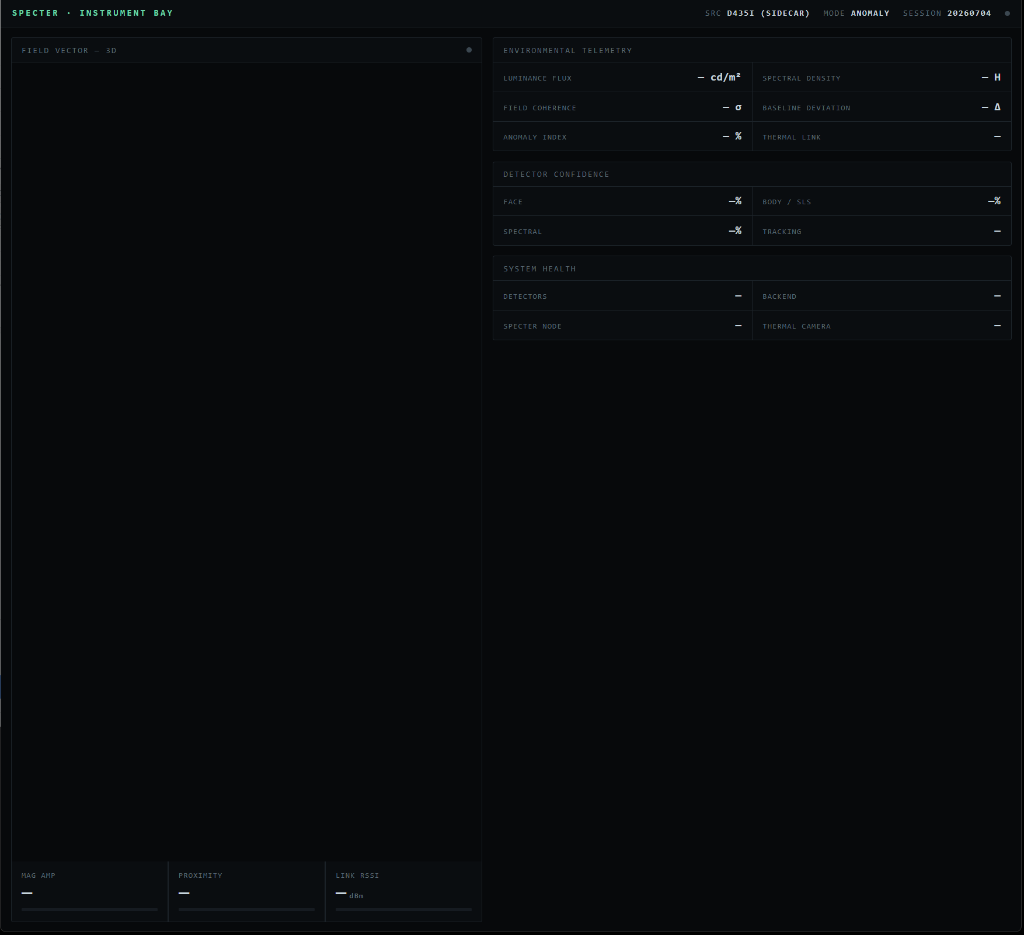
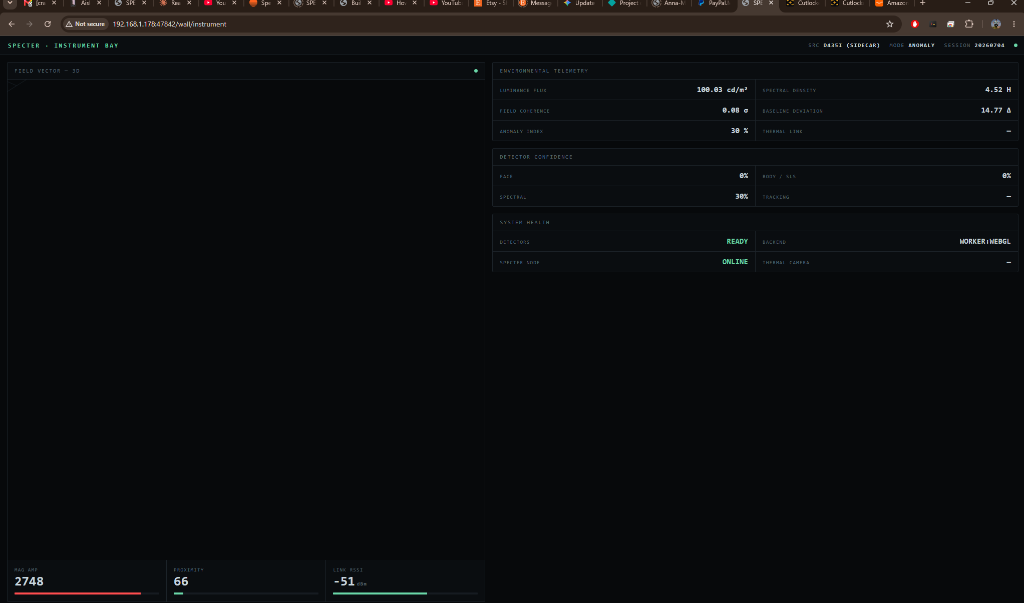
THE INSTRUMENT BAY
The Instrument Bay is a second-screen view focused on sensor telemetry. Its centerpiece is the Direction Finder: a top-down radar with a compass needle driven by the magnetometer bearing, and a proximity ring that grows inward as something gets closer.
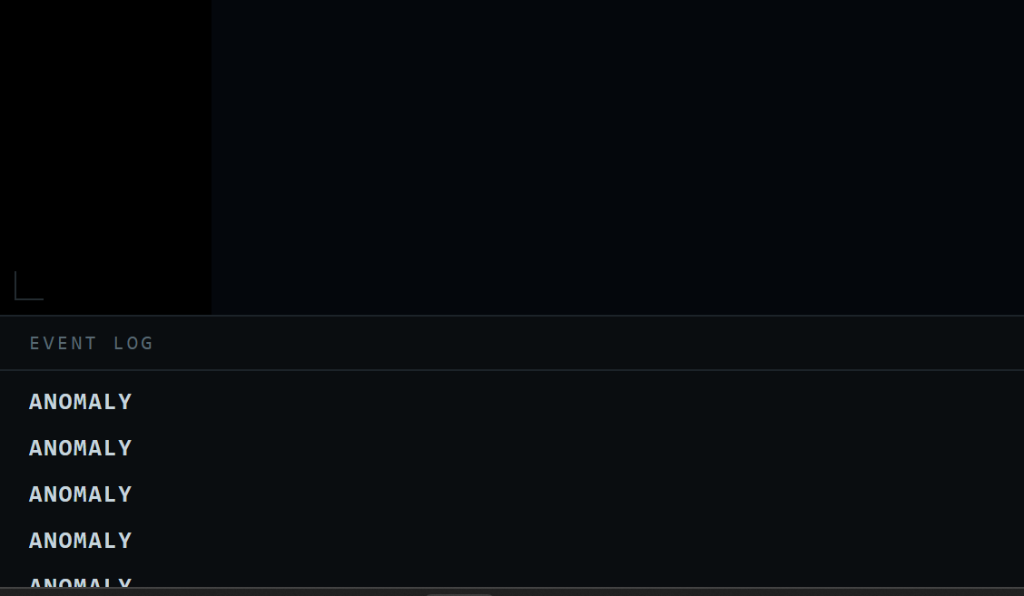
Below the radar, rolling 60-second sparklines track magnetometer amplitude and proximity over time. The sparklines are keyed to the wall clock, so they stay smooth and continuous even if the browser tab was in the background for a while.
THE 2x2 CONTROL CENTER GRID
The Control Center puts four live sources in one 2x2 workspace. Assign any source to any cell:
| Source | What it shows |
|---|---|
| RealSense RGB | The primary color feed |
| HDMI capture | A second camera through a capture card, live at the same time |
| Depth | The false-color or mono depth map |
| Depth 3D | The orbitable 3D depth cloud |
| Thermal | The thermal camera feed, when connected |
Set the four cells in Settings > Displays & Remote > Command Center. The grid can run on its own second screen through the same remote address.
DETECTION ALERTS TO YOUR PHONE
SPECTER can send a push notification to your phone the moment it flags a detection, so you stay covered even when you have stepped away from the screen. The alert arrives with the screen off and names the detection type, so you know whether to walk back in.
- Open the remote address on your phone (see the mobile remote above), then open the Alerts section.
- Tap Enable Alerts and accept the notification permission when the phone asks.
- On an iPhone, add the page to your Home Screen first (Share, then Add to Home Screen), open it from that icon, and then enable alerts. Apple only allows notifications from an installed page.
You can quiet alerts from the phone at any time with a snooze, and choose which detection types are allowed to notify you.
MONITOR FROM ANYWHERE
The local network views need you on the same Wi-Fi. When you have to leave the site, the remote can switch to a secure internet link so your phone keeps the live feed, telemetry, and alerts over cellular from anywhere.
- Open Remote Monitor in SPECTER and choose the Internet connection mode.
- SPECTER brings up a secure, encrypted link and shows a QR code and address for it.
- Scan it on your phone. The connection works on any network, including cellular, with no router setup.
Detection alerts to your phone work over this link too, which is the point: you can be out getting coffee and still get pinged the instant the room reacts.